



Digital Trends
There was a time when Siri was the best voice assistant. Then it lost its crown to the likes of Google Assistant and Alexa. Now, with the rise of AI assistants like Google Gemini and ChatGPT Voice, the competition has become even more fierce.
Thankfully, after letting Siri stagnate for years, Apple has finally given it the attention it deserved. And while there’s still a long way to go, I cannot deny that I am enjoying using this new Siri, and it has become more useful in my daily life than ever before.
That said, Siri is only as useful as the operator, which is why you need to learn the tricks to get the most out of it. The commands you use may get the job done, but they may not be the most efficient way to use Siri. We teach you about commands that can help you with everything from doing calculations to managing your device’s settings.
Activating Siri
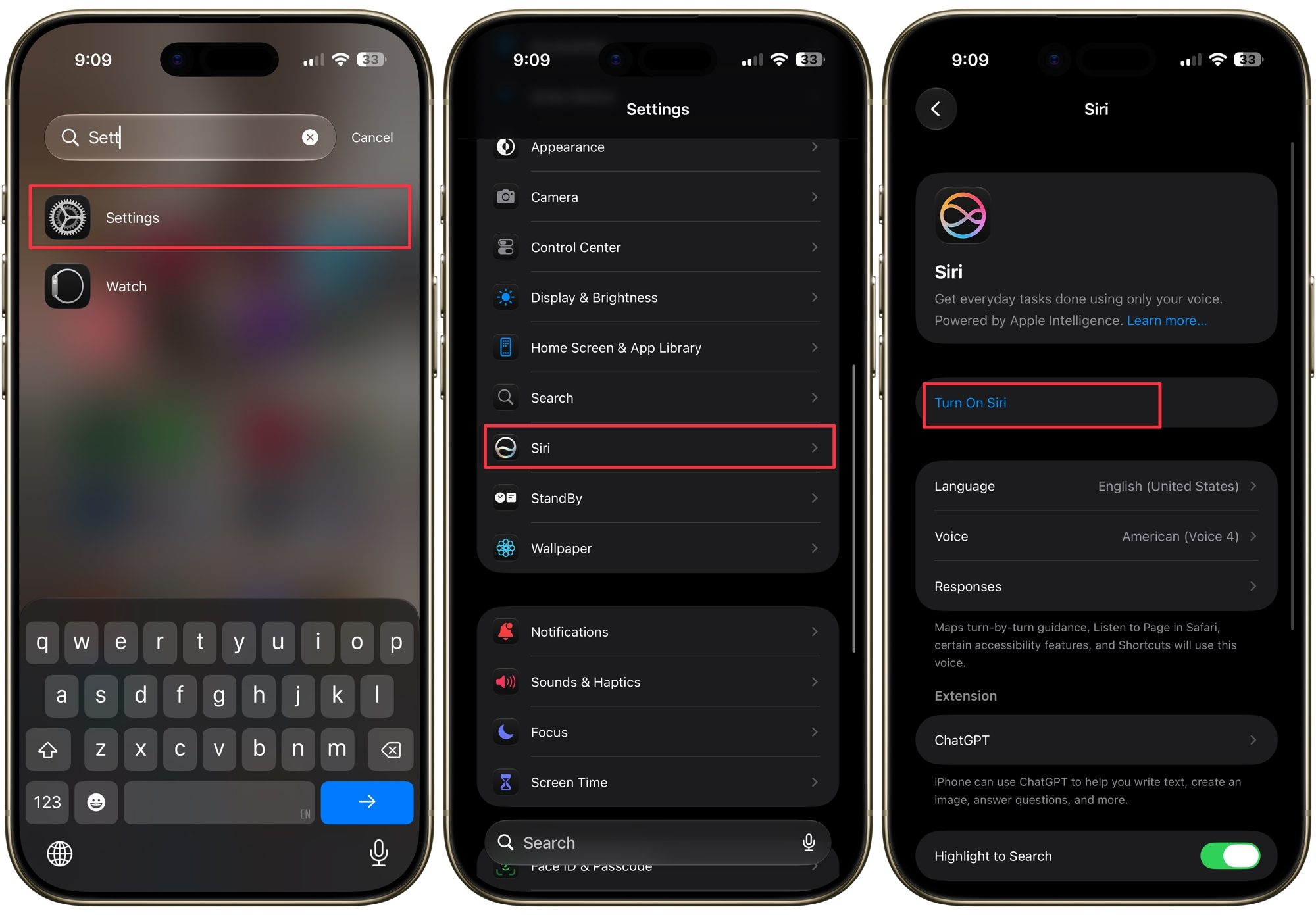
If you can’t talk to Siri, the feature may be turned off. On newer iPhones, head to Settings → Apple Intelligence & Siri (or only Siri in iOS 27) to check (older, non-Apple Intelligence devices still use the classic Settings → Siri & Search path). Once it’s on, there are a few ways to activate Siri:

- Press and hold the Home or Side button.
- Turn on Listen for “Hey Siri” in the same settings menu, then just say “Hey Siri” out loud.
- If your iPhone is running iOS 27, you can also swipe down from the top-center to use Siri AI.
- If you’re using AirPods, double-tap the AirPods Pro or 2nd-gen AirPods to activate Siri (this is customizable too).
- For newer AirPods and AirPods Pros, press and hold the stem to initiate Siri.
- AirPods Max users can hold down the Digital Crown until they hear a chime.
- On Apple Watch, long-press on the Digital Crown, or raise your wrist and start talking.
- On a Mac, press and hold the F5 key or use the “Hey Siri” command.
- In the car, say “Hey Siri” through CarPlay; no need to touch the screen while driving.
Siri just got an upgrade: Meet Siri AI
If you’ve felt like Siri has been stagnant for the last few years, that’s changing in a big way. Apple used WWDC this June to unveil Siri AI, easily the biggest overhaul Siri has ever received. Instead of the old command-and-response assistant, Siri AI can hold an actual conversation, remember what you just asked without repeating yourself, and dig through your Photos, Mail, Messages, Notes, Reminders, and Calendar to find what you need.


To power this, Siri AI runs on Apple’s new Foundation Models, and Apple built them with Google’s help. That doesn’t mean Apple just slapped its logo on Gemini, though. Apple took the techniques behind Gemini and used them to train something smaller and faster, tuned specifically for Apple’s own chips. Your personal data is still safe, since Private Cloud Compute handles sensitive data on its own.
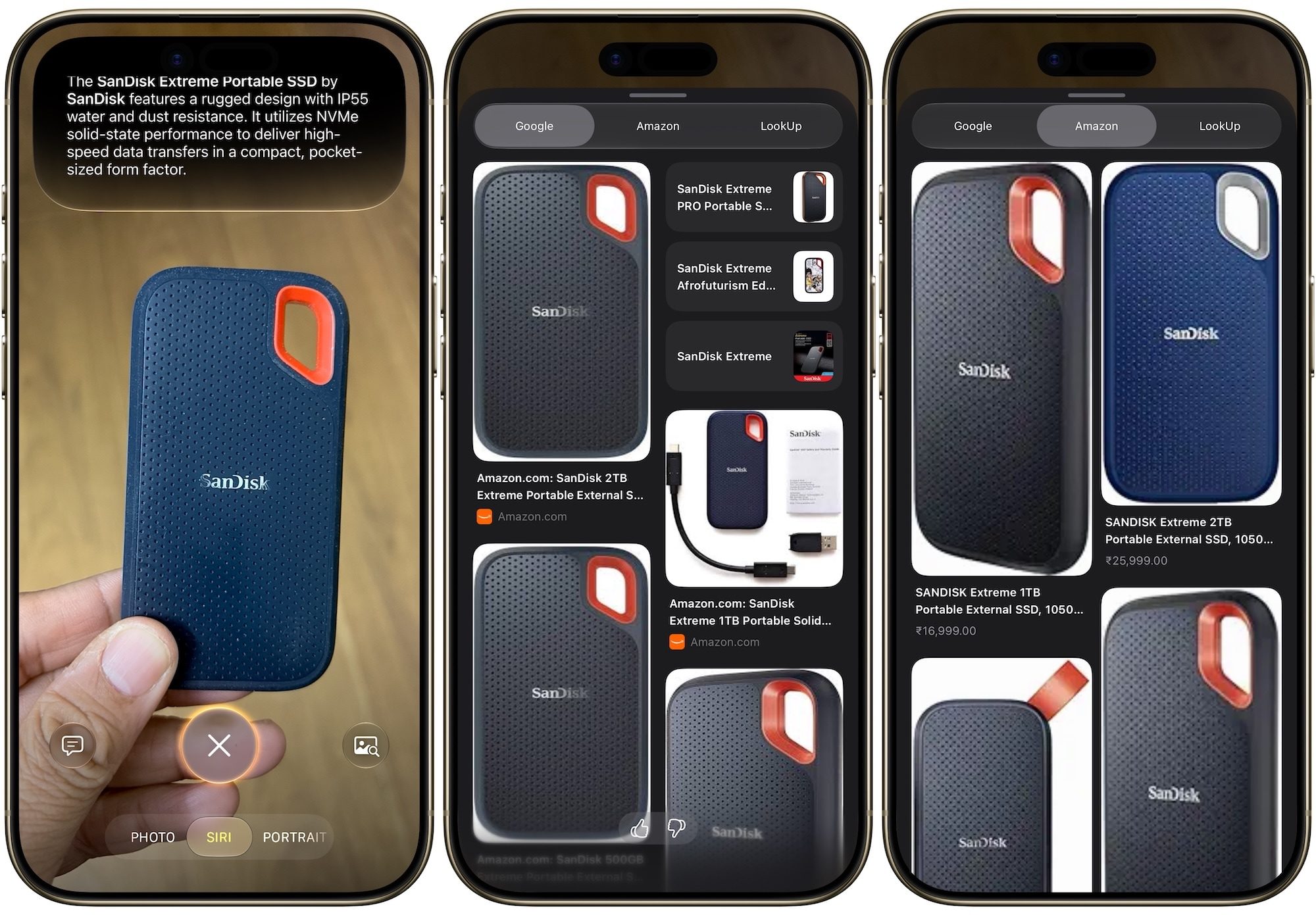
Siri AI also picks up a Camera mode for Visual Intelligence. Point your camera at a membership barcode, and Siri can turn it into a Wallet pass, or snap a photo of a product and find its listing on Amazon. There’s a dedicated Siri app now too, so you can start a conversation on your iPhone and pick it up on your Mac or iPad. It even holds onto context across that switch, so if you ask about restaurant recommendations on your iPhone, you can keep refining the answer once you’re sitting at your Mac.
The rollout spans the whole Apple lineup:
- iOS 27 on iPhone
- iPadOS 27 on iPad
- macOS 27 Golden Gate on Mac.
- watchOS 27 on Apple Watch
- visionOS 27 on Vision Pro
The catch is hardware. You’ll need an iPhone 15 Pro or newer to actually run it, even though iOS 27 itself installs on iPhones as old as the iPhone 11. On the Mac side, macOS Golden Gate is also the first version to drop Intel support completely, so it’s Apple Silicon only from here on out.
One thing worth knowing before you get excited: Siri AI is still in public beta as of this writing, supports English first, and won’t be available in the EU right away. Apple says the full rollout lands later this year, with iOS 27 itself expected in September.
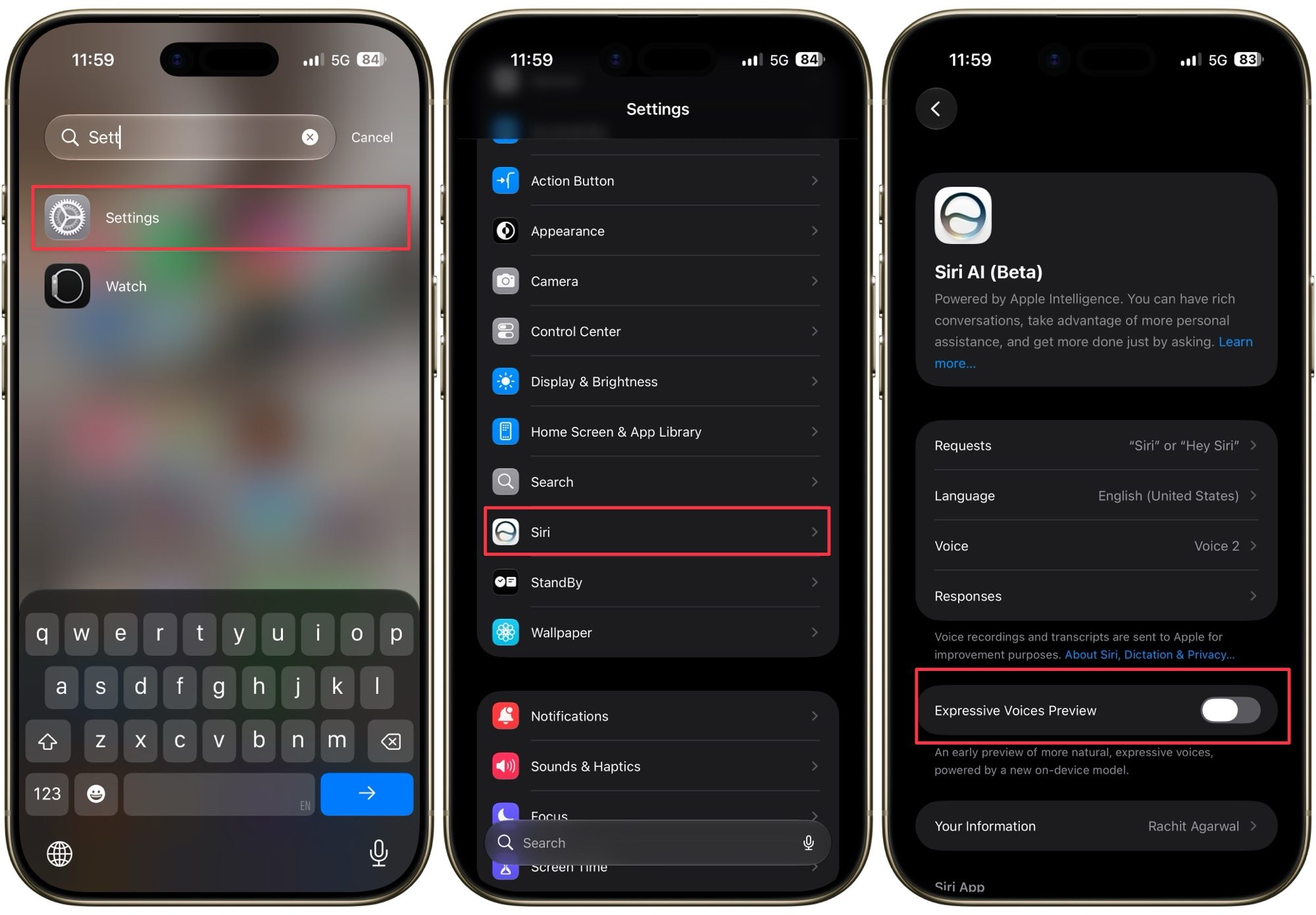
If you want to fine-tune how it sounds, head to Settings → Siri → Voice to adjust Siri’s pace and expressiveness. Those settings carry over to Maps and Safari’s spoken directions as well, so once you dial in a pace you like, it follows you across the whole system.
Commands for calling, voicemail, messages, and email
Whether you’re making a call or firing off a quick email, Siri can handle most of your everyday communication without you ever opening an app. Here’s what to say:
- “Call [name or number].”
- “FaceTime [name or number].”
- “Call [name or number] on speaker” to start the call on speakerphone.
- “Call [name] back” to redial the last person who called you.
- “Check my voicemail” or “Check voicemails from [name].”
- “Check my messages” or “Check my email.”
- “Read my new messages” or “Read my new email.”
- “Read my last message from [name].”
- “Send a message to [name] saying [message].”
- “Send an email to [name].” Siri will ask for the subject and message, or you can say it all at once: “Send an email to [name], about [subject], and say [message].”
- “Mute this call” while you’re already on a call.
Commands to control your device’s settings
Skip the trip through Control Center and let Siri flip your settings for you instead:
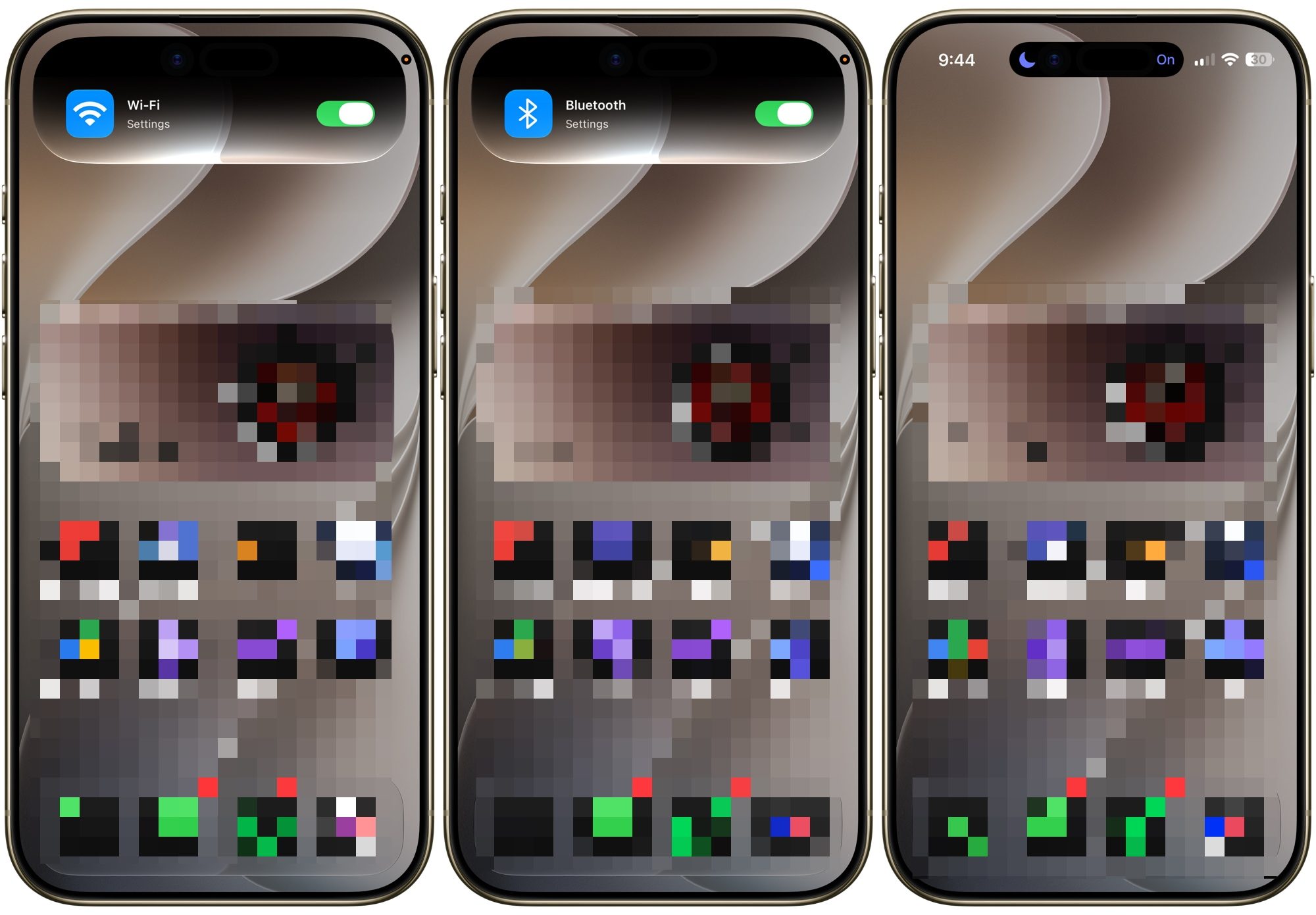
- “Turn on/off [Wi-Fi, Bluetooth, cellular data, Do Not Disturb, Night Shift, or Airplane Mode].”
- “Take a picture/selfie.”
- “Increase/decrease brightness.”
- “Turn up/down the volume” while playing music.
- “Open [app or game].”
- “Turn on Low Power Mode” when your battery is running low.
- “Turn on the flashlight.”
- “Turn on Dark Mode.”
- “Turn on my Work Focus” (or Personal, Sleep, or any custom Focus you’ve set up).
- “Open Camera” or “Open Settings.”
Commands for currency conversions, calculations, and timers
From splitting a bill to checking the weather before you head out, these commands turn Siri into a pocket calculator and clock:
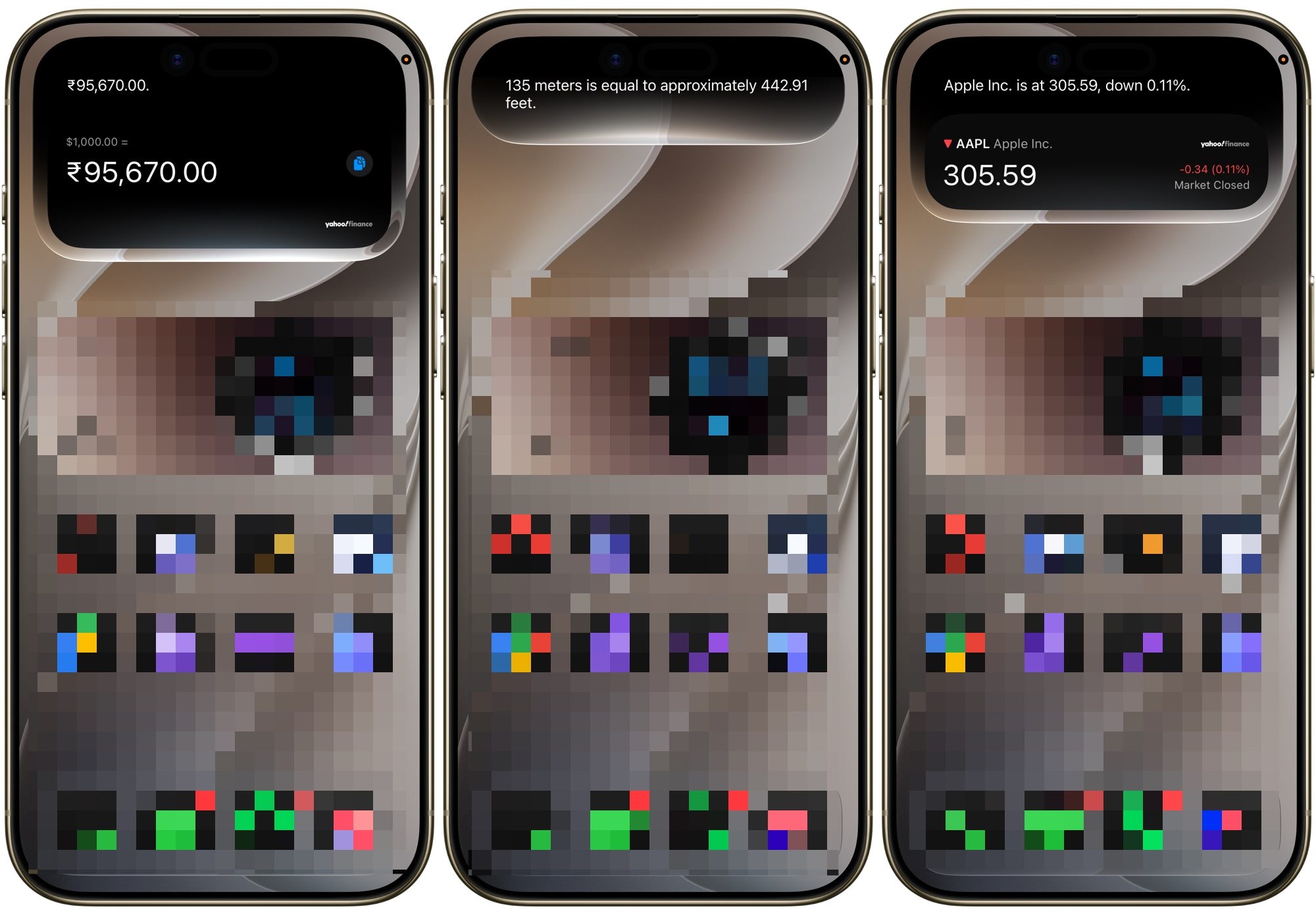
- “What is [amount and currency] in [other currency]?”
- “What are 335 meters in feet?” (or any other measurement conversion)
- “What is [number] plus/minus/divided by/multiplied by [number]?” or “What is the square root of [number]?”
- “What is 75 degrees Fahrenheit in Celsius?”
- “Set a timer for [amount of time].”
- “Pause my timer” or “Cancel my timer.”
- “How much time is left on my timer?”
- “Set an alarm for [time].”
- “What is [percentage] of [number]?” to calculate a tip.
- “What is [company]’s stock price?”
- “What’s the weather like today?” or “What’s the weather like in [city]?”
- “What time is it in [city or country]?”
Commands for appointments, alarms, lists, and reminders
Keeping your schedule straight is one of Siri’s best tricks, and you don’t need to open a single app to do it. With iOS 27, it has become even better. Now that both Reminders and Calendar support natural language processing, you can speak naturally to create events and reminders for the right time and day.
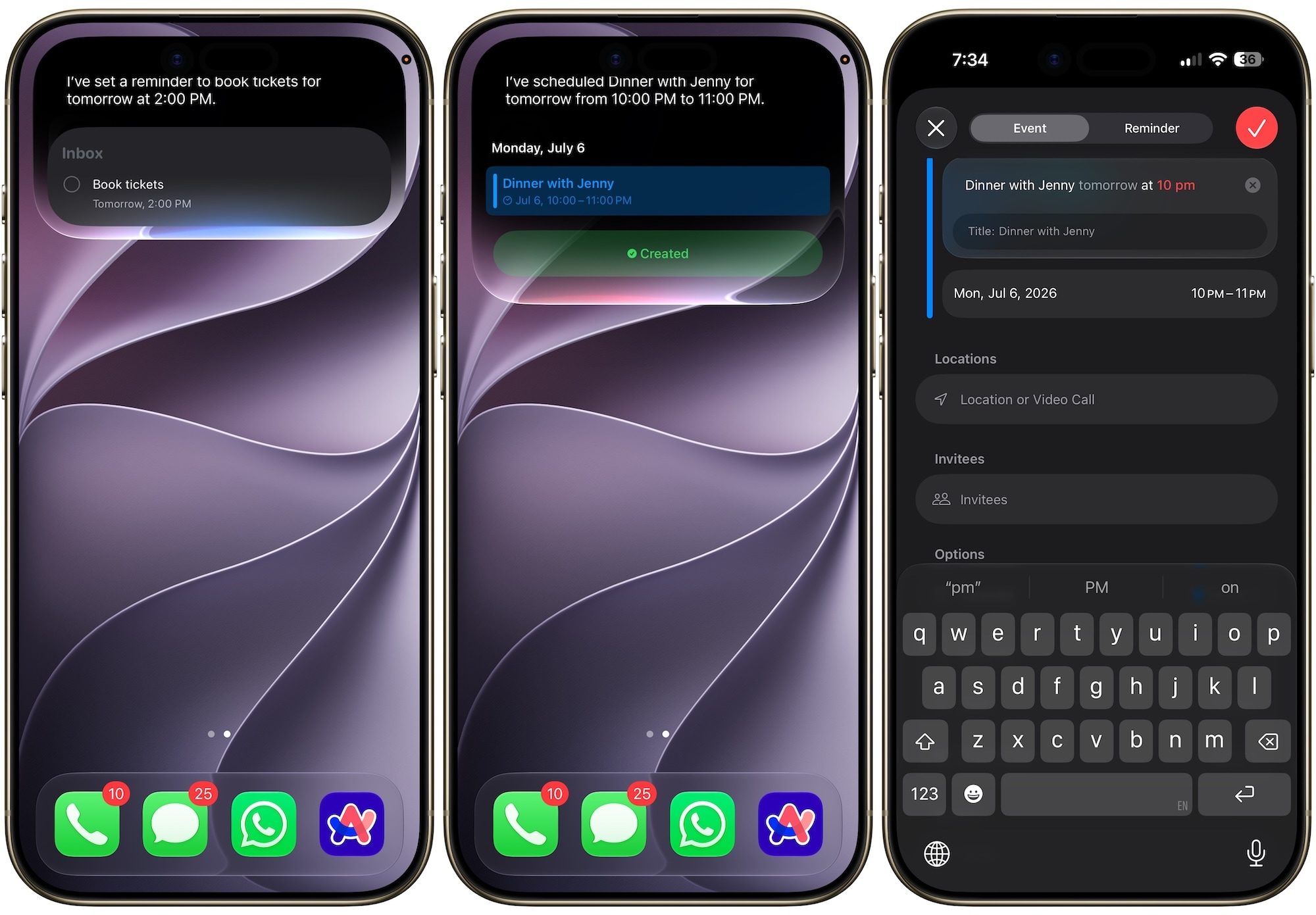
- “Check my meetings.”
- “What’s on my calendar tomorrow?” or “What’s on my calendar this week?”
- “Schedule a meeting with [name] at [day and time].”
- “Move my [meeting name] to [new time].”
- “Cancel my meeting with [name].”
- “Remind me to [what] at [when].” You can add a location too, like “Remind me to call John when I get home.”
- “Remind me about this in an hour.”
- “Delete my reminder about .”
- “What day is December 25?” or “How many days until December 25?”
- “Make a list called [name].”
- “Add items to the list [name].”
- “What’s on my [name] list?”
Navigation and travel commands
Siri can double as your co-pilot, whether you’re driving across town or just trying to find the nearest coffee shop:
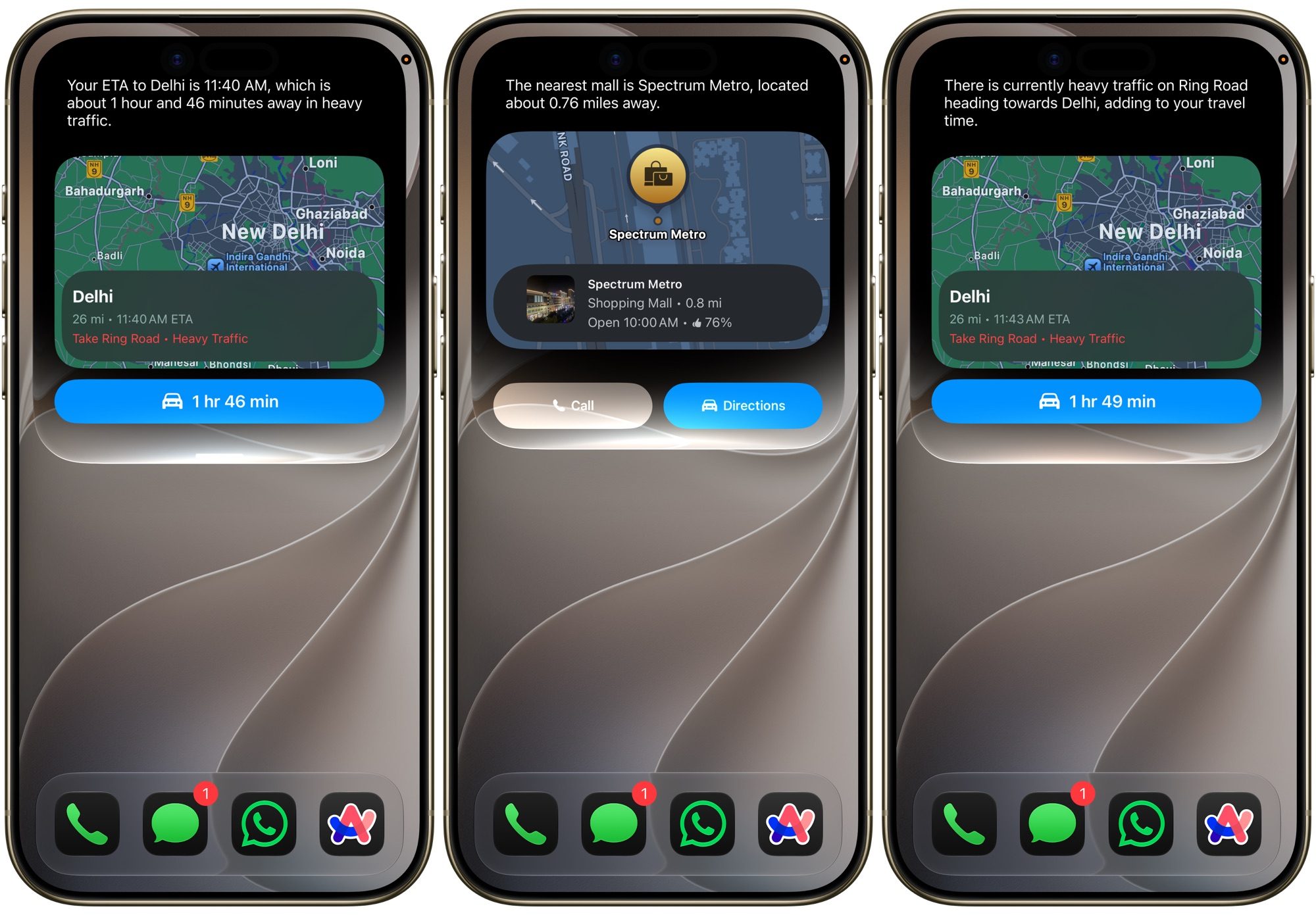
- “Where am I?” or “What’s my location?”
- “Show me the nearest [gas stations/restaurants/malls].”
- “How do I get to [destination] by car/foot/bike?”
- “Take me home.”
- “Find parking near [destination].”
- “Avoid tolls” or “Avoid highways” while getting directions.
- “What are the traffic conditions near [location]?”
- “How long until we arrive at [destination]?”
- “What’s my ETA?”
- “Check flight status of [airline and flight number].”
- “Do I need an umbrella?”
Search commands
When you don’t know exactly where something is, Siri can dig through your apps and the web to find it:
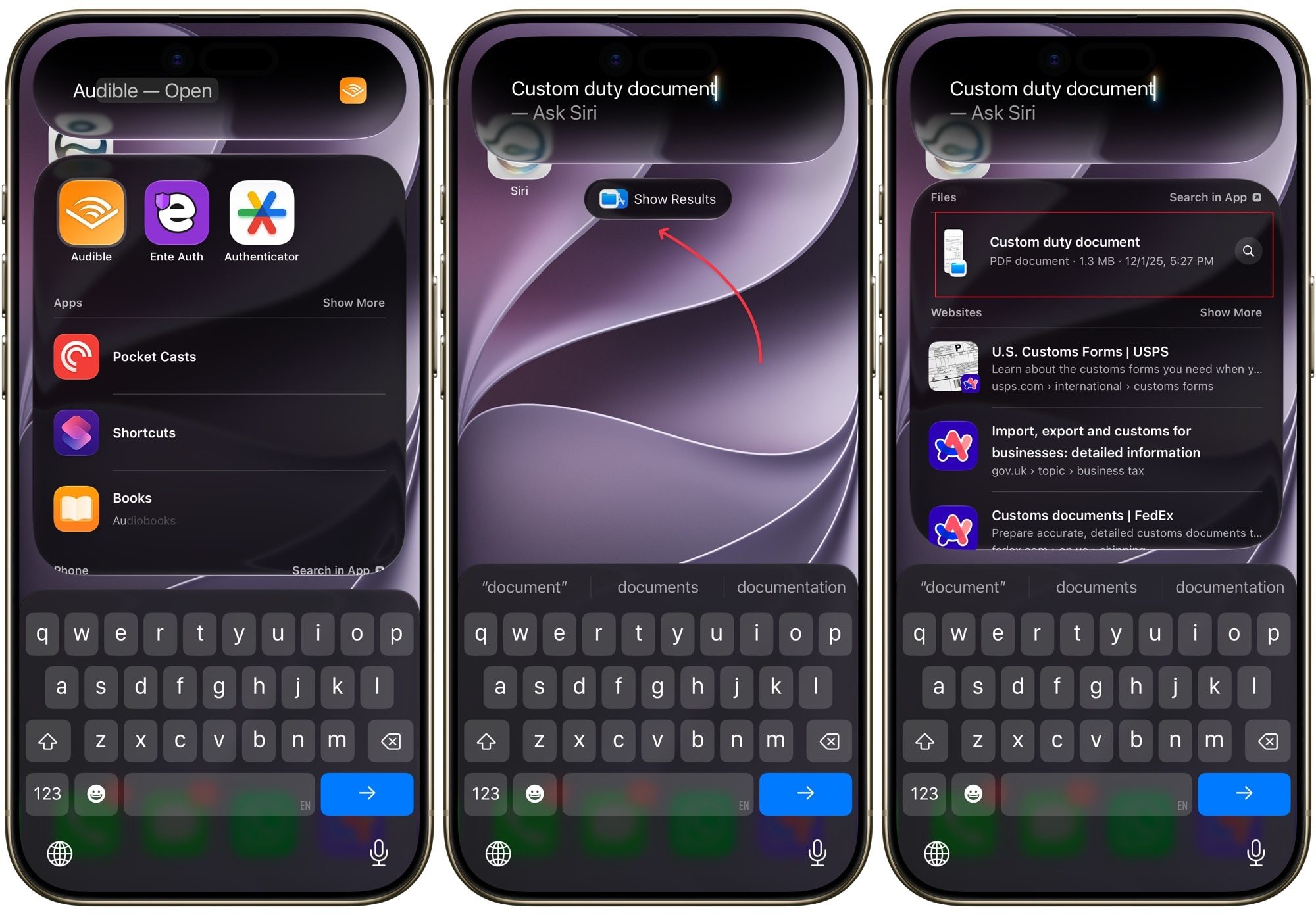
- “Open [app name].”
- “Define [word].”
- “Search the App Store for [app or category].”
- “How do you cook an omelet?” (or any other question you’d normally Google)
- “Find notes/email about .”
- “Find friends near me” or “Where is [friend]?”
- “Show me photos from [date]” or “Show me photos of [name]” if you’ve tagged people in the Photos app.
- “Show me my screenshots from last week.”
- “Find/download the [artist] podcast.”
- “What’s trending right now?”
Entertainment, sports, and music commands
Siri also moonlights as your DJ and personal scoreboard:
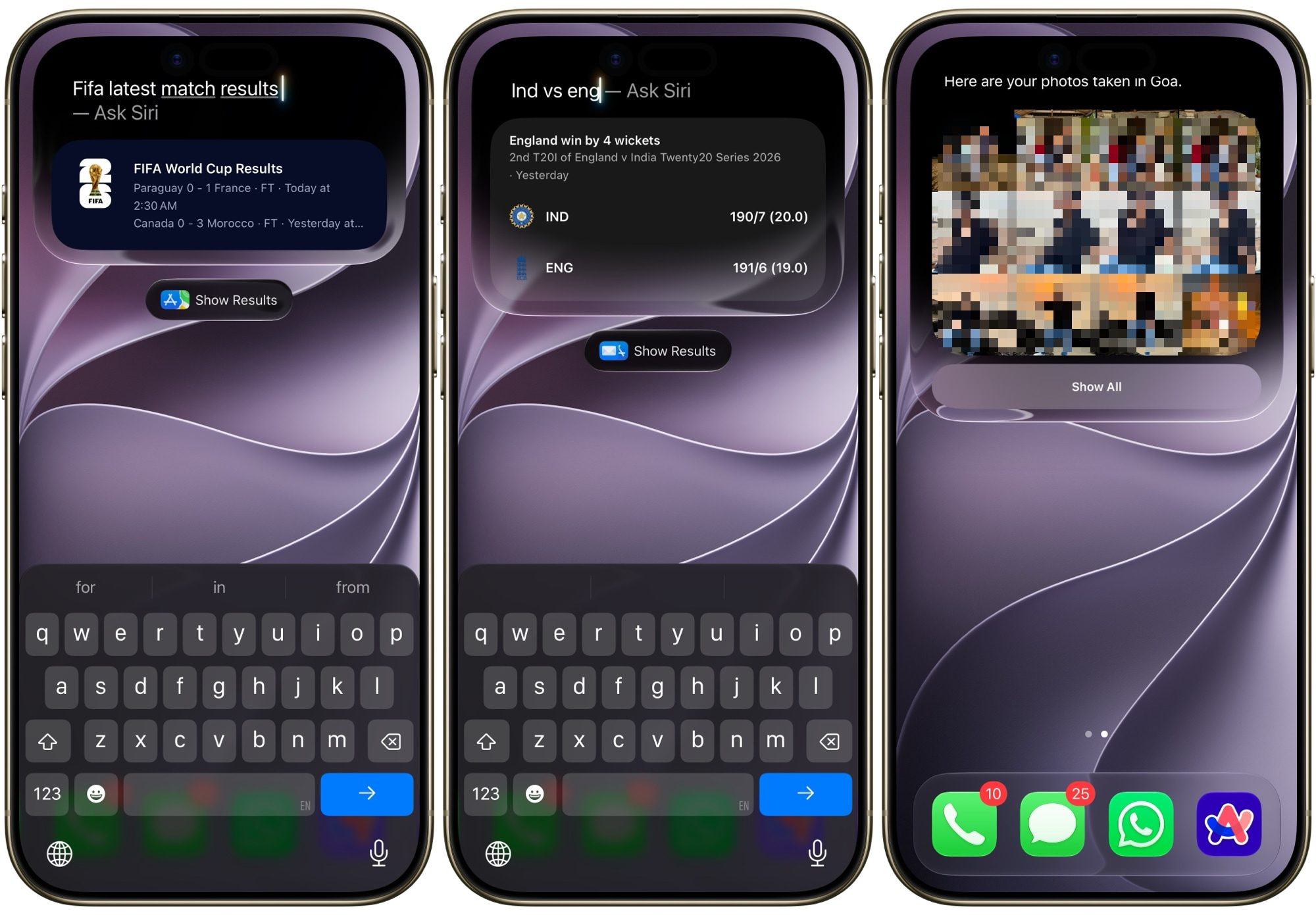
- “Show me the [team or game] scores.”
- “Play music,” or while a song plays, “pause/stop/skip” or “play the next/previous song.”
- “Play [song name].”
- “Like this song.”
- “What song is this?”
- “Play more like this.”
- “Play songs from [artist].”
- “Add this song to my library.”
- “Play my Discover Weekly” or “Play my [name] playlist.”
- “Turn on sing-along” if you want Apple Music’s lyrics mode.
- “Play music for cardio/studying/bedtime.”
- “What movies are playing near me?” or “What are the showtimes for [movie/theater]?”
Build your own Siri commands
Siri’s built-in commands only get you so far. If you want Siri to do something specific to your life, Shortcuts is where you build it. Open the Shortcuts app, tap the plus button, add whatever actions you want strung together, give it a name, and save it.


iOS 27 update has made it even simpler. Now, you can simply ask the Siri AI to build a shortcut for you. After you create a shortcut, you can trigger the whole thing just by asking Siri for it by name.
- A “Heading Home” shortcut that combines “get directions home” with “start my podcast playlist.”
- A “Bedtime” shortcut that turns on Do Not Disturb, sets an alarm, and dims your smart lights all at once.
- A “Leaving Work” shortcut that texts your partner your ETA and starts navigation home in one go.
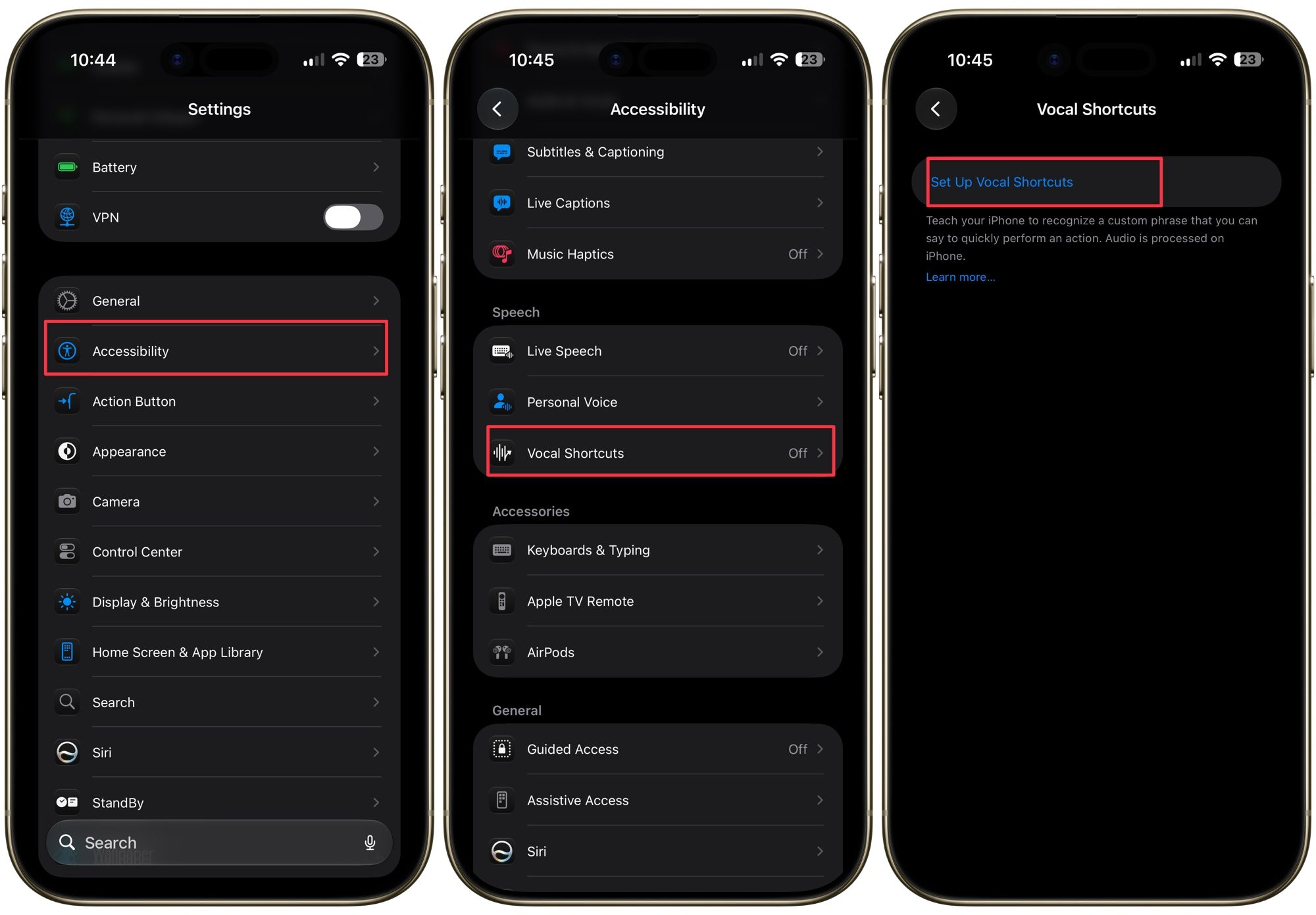
You can also make use of Vocal Shortcuts. Instead of learning Siri’s exact phrasing, you can record your own custom phrase and assign it to a system action or a shortcut you already built. You can set it up under Settings → Accessibility → Vocal Shortcuts.
Siri also plugs into a long list of third-party apps through Shortcuts. Depending on what’s installed, you can say things like:
- “Get me a ride to the airport.”
- “Pay XYZ $20.”
- “Post a message to Facebook.”
- “Order the usual” if you’ve set that up for your favorite delivery app.
Using Siri with your HomePod and Apple Watch
If you’re playing music through your iPhone on a HomePod, all the music commands above apply, plus:

- “Turn the volume up 65%,” which works on HomePod even if it doesn’t on other Bluetooth speakers.
- “What’s playing?” if you walked into the room mid-song.
- “Play something I’d like.”
HomePod also makes it easy to use Intercom, which broadcasts a message to every compatible speaker and device in your Home group, including AirPods:
- “Intercom, dinner is ready in 5 minutes.”
- “Ask everyone, has anyone seen my coat?”
- “Announce upstairs, don’t forget to clean your room.”
- “Reply, your coat is in the laundry room” to answer an Intercom message.
- “Reply to the kitchen” to answer a specific room.
Your Apple Watch gets its own set of Siri shortcuts too. Raise your wrist and start talking, or press and hold the Digital Crown if raise-to-speak isn’t cooperating:
- “Start a running workout.”
- “What’s my heart rate?”
- “How’s my Activity ring looking today?”
- “Set a timer for 10 minutes.”
- “Reply” while a message notification is on screen.
- “Start a Walkie-Talkie with [contact].”
- “Turn on Theater Mode” before you walk into a movie.
If you’re wearing AirPods paired to your Watch, Siri reads incoming messages and lets you dictate a reply without ever touching your phone.
Using Siri with HomeKit
If you have HomeKit-compatible smart devices, Siri opens up a lot more control over your home:

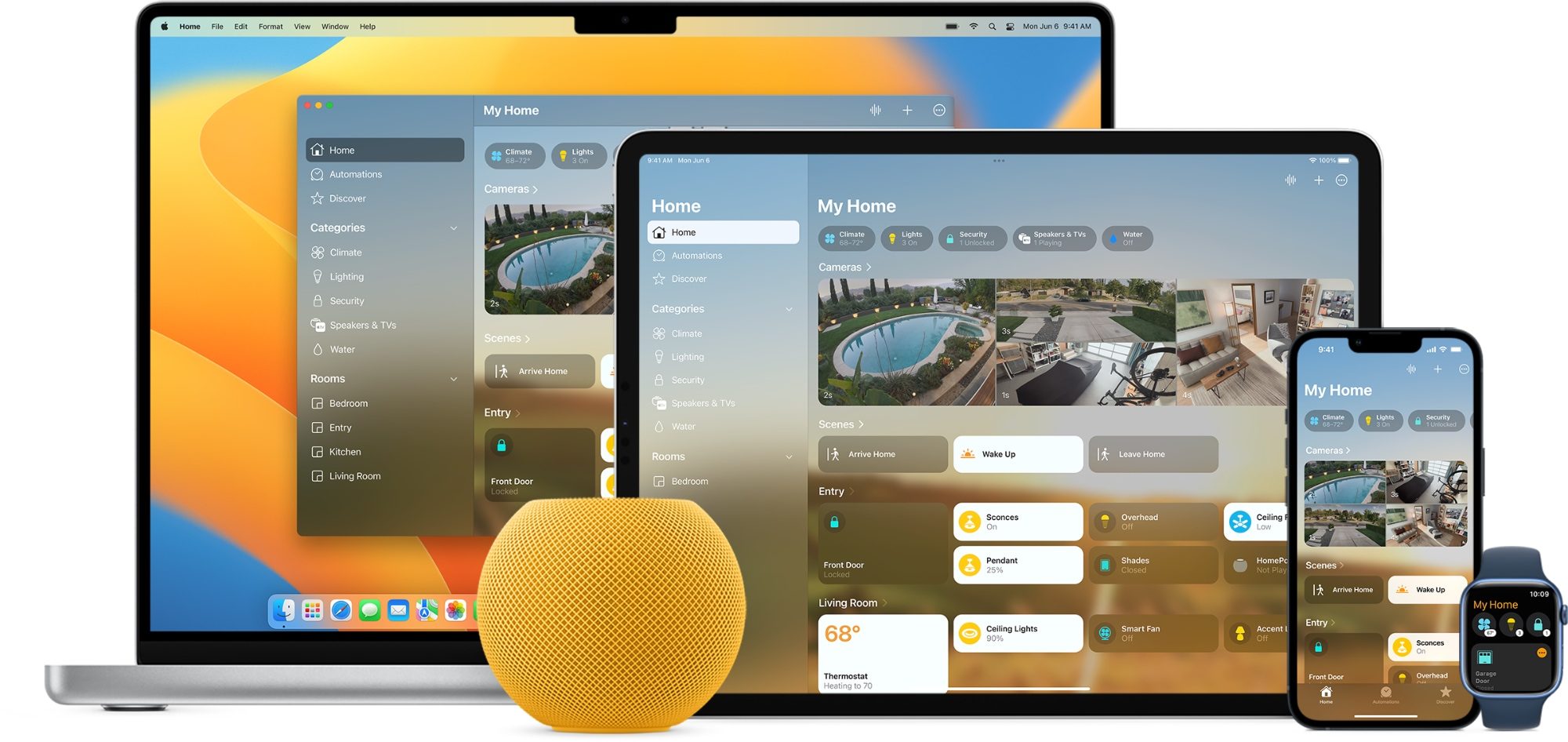
- “Set the temperature to 72 degrees.”
- “Turn the living room lights red.”
- “Turn off all the lights.”
- “Dim the bedroom lights.”
- “What’s the temperature in the living room?”
- “Is the garage door open?”
- “Is the front door locked?” or “Unlock the front door.”
- “Lock all the doors.”
- “Turn on the fan.”
- “Set a scene called Movie Night.”
- “I’m home,” which can trigger a whole smart home scene.
- “Good night,” same idea.
When Siri won’t listen
If Siri’s gone quiet on you, it’s almost always one of a few usual suspects:
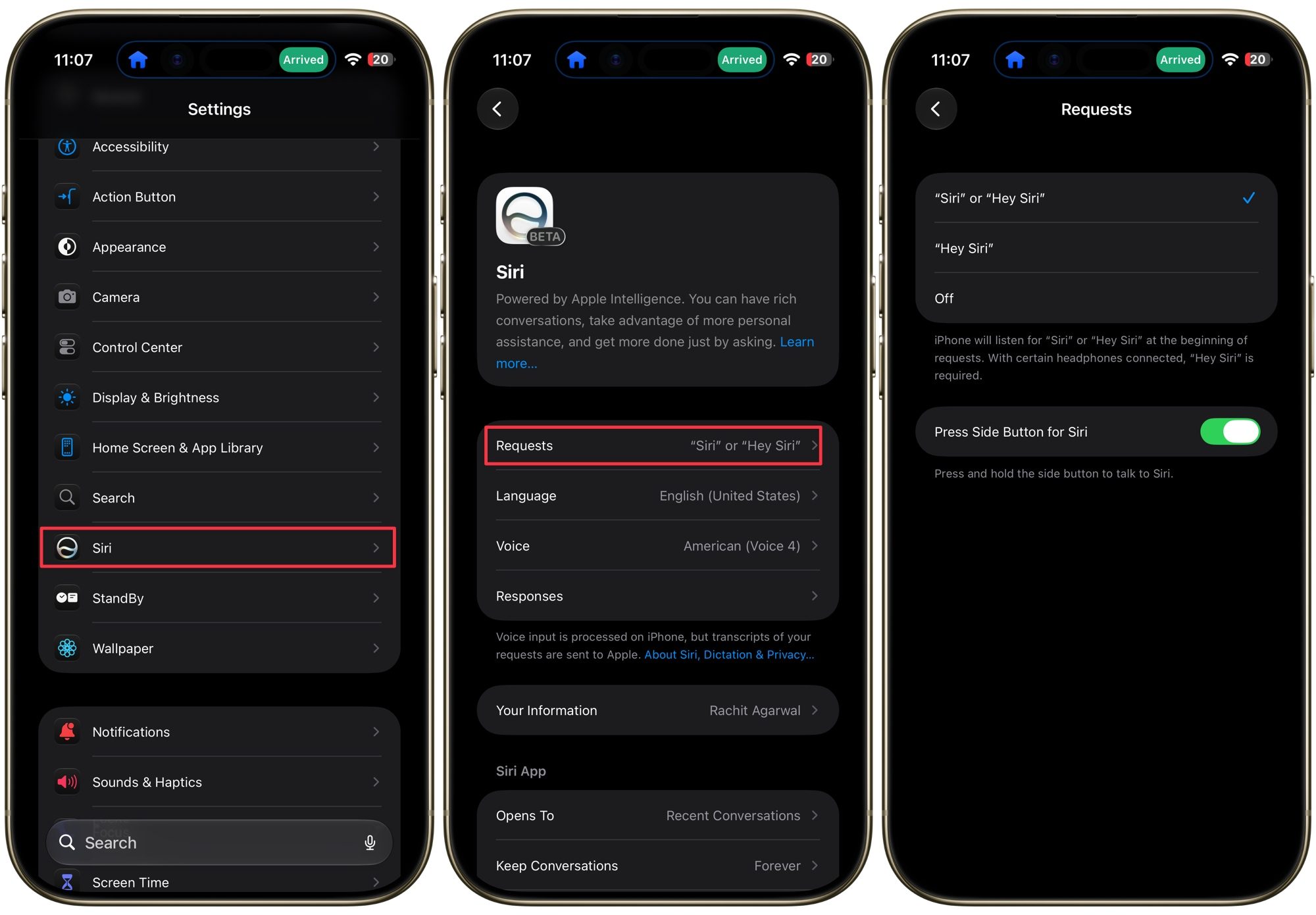
- Check that Siri’s actually enabled under Settings → Apple Intelligence & Siri, and that “Listen for Siri” is toggled on. In iOS 27, go to Settings → Siri → Requests and turn it on.
- Check your connection, since Siri needs internet access and a dead Wi-Fi or cellular signal kills it instantly.
- Turn off Low Power Mode, which silences “Hey Siri” listening to save battery.
- Check if a Focus mode is quietly blocking notifications and voice prompts you’d expect to hear back.
- Force restart your iPhone. It sounds too simple, but it clears most temporary glitches.
- Retrain your voice under Siri settings, especially if you’ve had a cold or your voice has changed.
- Double-check Siri’s language setting matches how you’re actually speaking to it, since a mismatch can make it seem like Siri stopped listening entirely.
Fun stuff: funny things to ask Siri
Siri isn’t just useful; it’s also weirdly good for a laugh when you’re bored. Here’s a list of commands worth trying, since this is where Siri’s personality really comes out.
- Ask for a joke with “tell me a joke” or “knock knock,” and Siri has a deep enough catalog that you won’t hear the same one twice for a while.
- Play a quick game with “flip a coin,” “roll a die,” or “rock, paper, scissors,” all of which trigger an instant, no-app-needed mini-game.
- Get philosophical and ask Siri what its favorite color is, whether it dreams, or if it’ll go on a date with you. The answers have more personality than you’d expect.
- Test its self-awareness by asking Siri to compare itself to Alexa or Google Assistant.
- Ask the big questions, like “What is the meaning of life?” or “What’s the loneliest number?” Siri has surprisingly thoughtful answers ready to go.
- Ask “Do you love me?” or “Will you marry me?” for a response that’s equal parts sweet and evasive.
- Ask “Are you human?” or “Are you a robot?” and watch Siri dodge the question in a genuinely funny way.
- Try asking Siri to sing, tell you a story, or read you a poem when you need a break from scrolling.
- Ask “Who’s your daddy?” for one of Siri’s more famous canned responses.
- Try “Beatbox for me” for a surprisingly committed performance.
- Ask Siri what it thinks of Android phones or other assistants, and it usually has an opinion ready.
That’s every Siri command worth keeping in your back pocket, from the practical to the downright silly. Siri clearly isn’t done changing either, and once Siri AI fully rolls out with iOS 27 this fall, some of these tricks will probably feel outdated fast. Until then, go try a few out for yourself, especially the funny ones, and let us know which command you didn’t know you needed.
The best funny and useful Siri commands for iOS and macOS
Source link


