





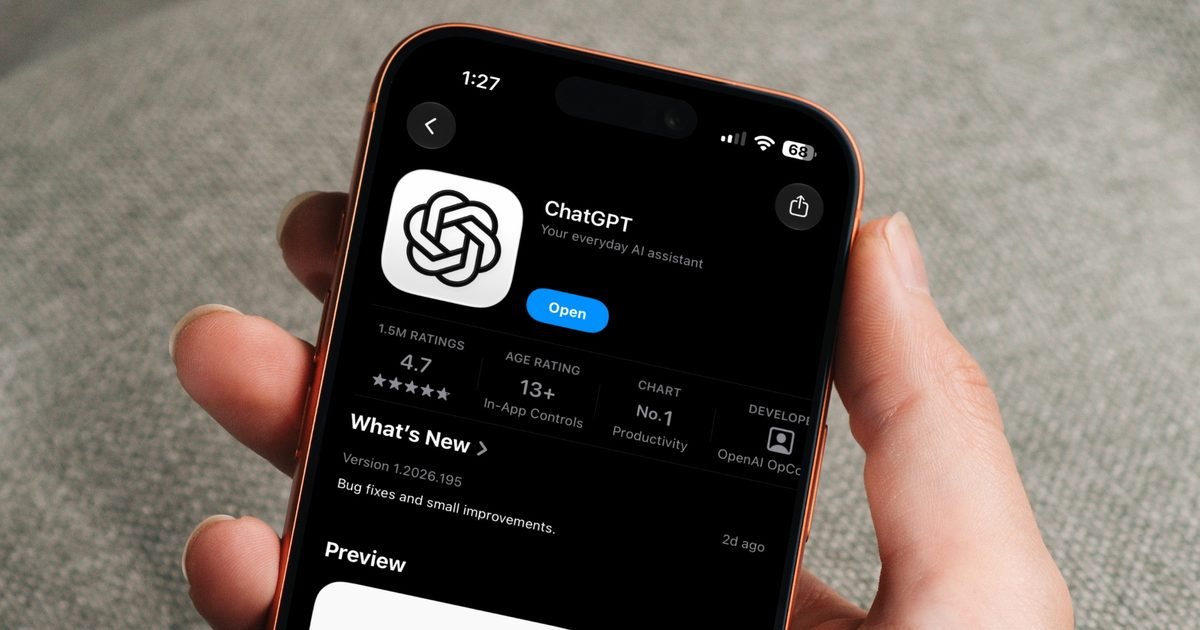
I found 3 ChatGPT features that turned out to be way more useful than I expected
Digital Trends
I use ChatGPT pretty much every day, but somewhere along the way, I’ve also developed a habit of poking around and looking for features I haven’t tried yet. Some discoveries are genuinely useful, while others are the kind I’ll probably remember once every six months.
Every once in a while, though, I stumble across something that actually changes how I use ChatGPT. That happened recently with three features I’d somehow been overlooking. I’ve started using all three regularly now, and if you spend a lot of time in ChatGPT too, I think you’re missing out by not giving them a shot.
I let ChatGPT figure out my mornings
One feature I’ve started relying on a lot is scheduled tasks. ChatGPT can now run these for me automatically every day in my local time zone, which means I don’t have to remember to come back and ask it the same thing every morning. I’ve set mine up as a daily work brief. Since a lot of my work happens across Slack and Gmail, I connected both and asked ChatGPT to pull together the things that actually deserve my attention. Once everything is connected, it can read across those sources and immediately build a brief using what’s happening there right now. And this is where it becomes genuinely useful for me. Every morning, I get a short list of around three to five things that are most likely to need my attention that day. ChatGPT tells me what each one is about, why it matters, how urgent it seems, and what I should probably do next, along with a link or citation so I can jump straight to the original message.
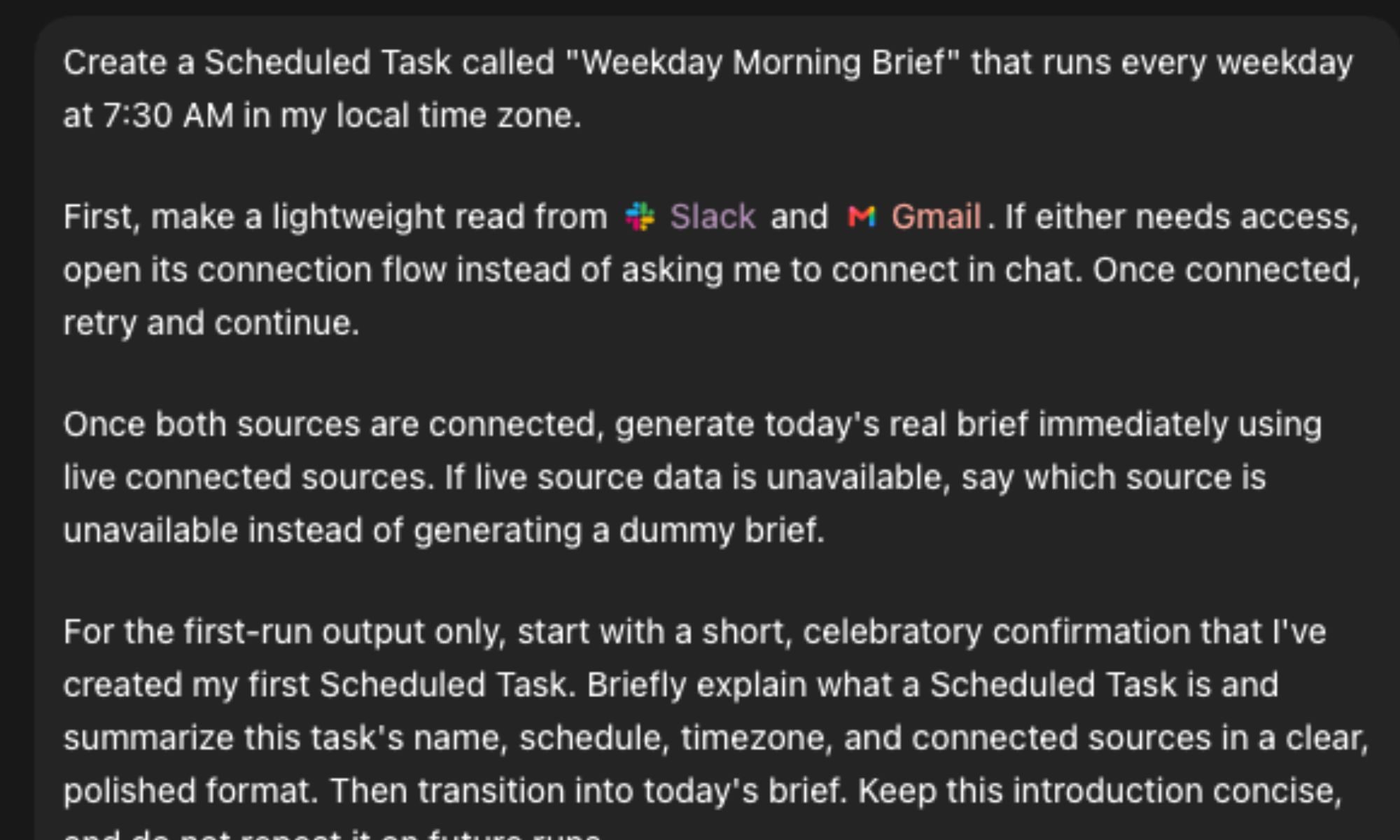
Instead of opening Slack, then Gmail, and slowly figuring out what needs to happen first, I already have a pretty good idea of how my day looks. I can tackle anything urgent first and plan everything else around it. I’ve even asked ChatGPT to send the brief when absolutely nothing important is waiting for me. On those glorious mornings, all I get is a simple, “No urgent items found.” Quite frankly, that might be my favorite version of the brief. ChatGPT uses Codex to help set this workflow up, so you’ll need a Pro subscription to use it this way. Pro comes with plenty of other perks as well, and considering how much I use ChatGPT throughout my workday, I’ve found the subscription easy to justify. The whole idea reminds me quite a bit of the Daily Brief experience you can get with Gemini. The result isn’t dramatically different: both are trying to save you from manually digging through everything before your day has even properly started. But ChatGPT has become the AI tool I naturally reach for first, so having my morning brief live here fits my workflow better.
I moved in without unpacking everything again
I’d be lying if I said I’ve always been a ChatGPT person. Before making the switch, I relied pretty heavily on Claude, and for a long time, it simply fit the way I worked better. Naturally, that also meant Claude knew quite a bit about me and how I liked to get things done. That was actually my biggest hesitation when I decided to move over to ChatGPT. I wasn’t worried about learning a new interface or figuring out where everything lived. I was worried about starting from scratch. Thankfully, ChatGPT now has an Import from Claude feature, and it made that switch a lot less painful for me. Instead of manually rebuilding all that context conversation by conversation, I could bring my existing Claude data over and give ChatGPT a much better starting point.
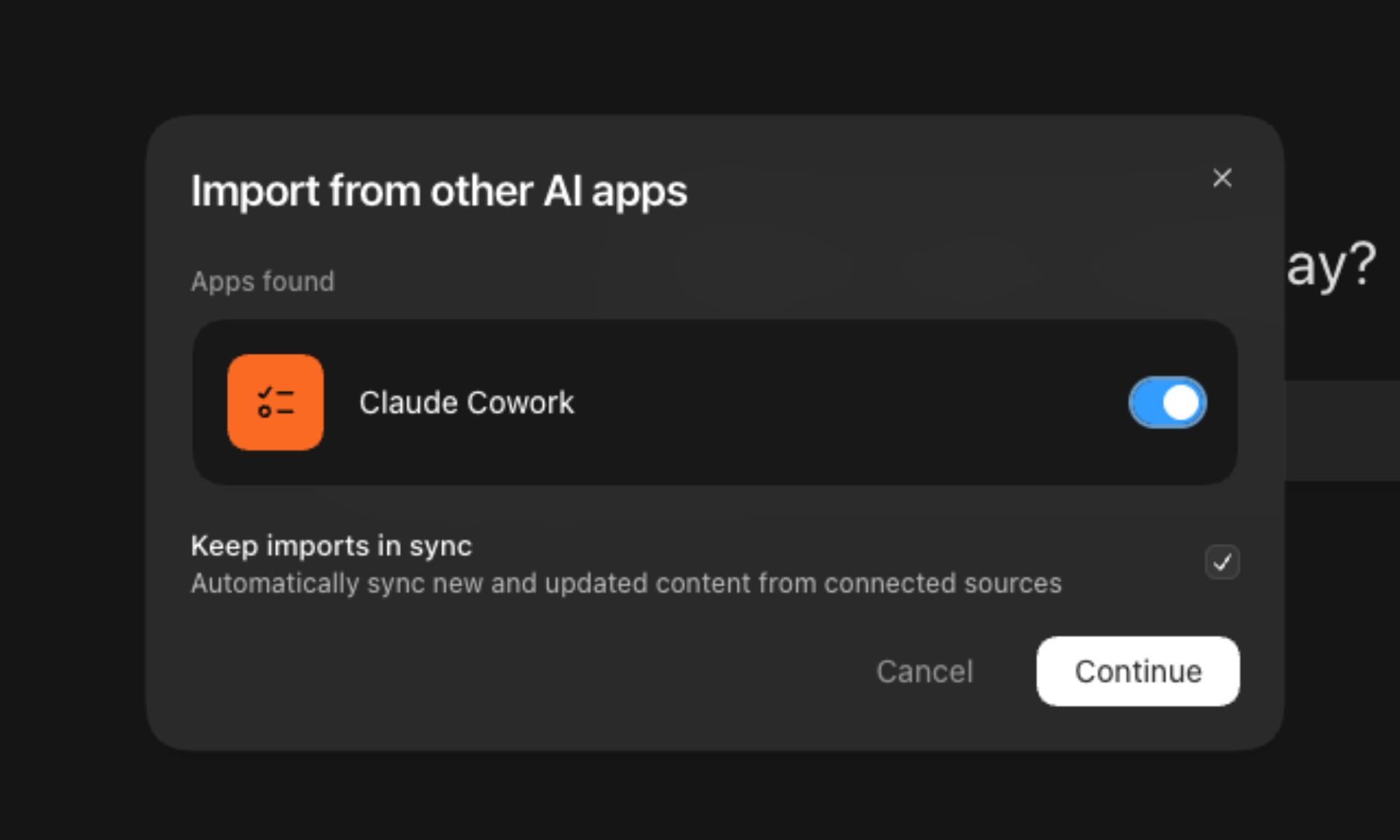
For example, if Claude already knew how I preferred my research to be like, the kind of work I regularly do, or other details I’d previously asked it to remember, I didn’t have to sit down and feed all of that information to ChatGPT again. It might sound like a small convenience, but if you’ve spent months building up context with another AI assistant, you’ll know just how annoying starting with a completely blank slate can be. ChatGPT can also keep connected sources up to date by syncing new or changed content, so the information it can work with doesn’t necessarily stay frozen at the moment you connect it. For me, it meant switching AI tools without having to introduce myself all over again.
I can finally take my work with me
It gets even better from here because ChatGPT also lets me download the work I create inside it. This sounds like such a basic feature until you actually need to move something out of ChatGPT, and then you realize how useful it is. I run into this quite often with my study projects. If I’m working on something for my psychology thesis, for example, I might spend a long time inside ChatGPT brainstorming ideas, organizing my research, cleaning up notes, or turning a messy collection of thoughts into something I can actually work with. Once I’m happy with it, I can download the finished work as a Markdown file, PDF, or Microsoft Word document and continue working on it wherever I want.
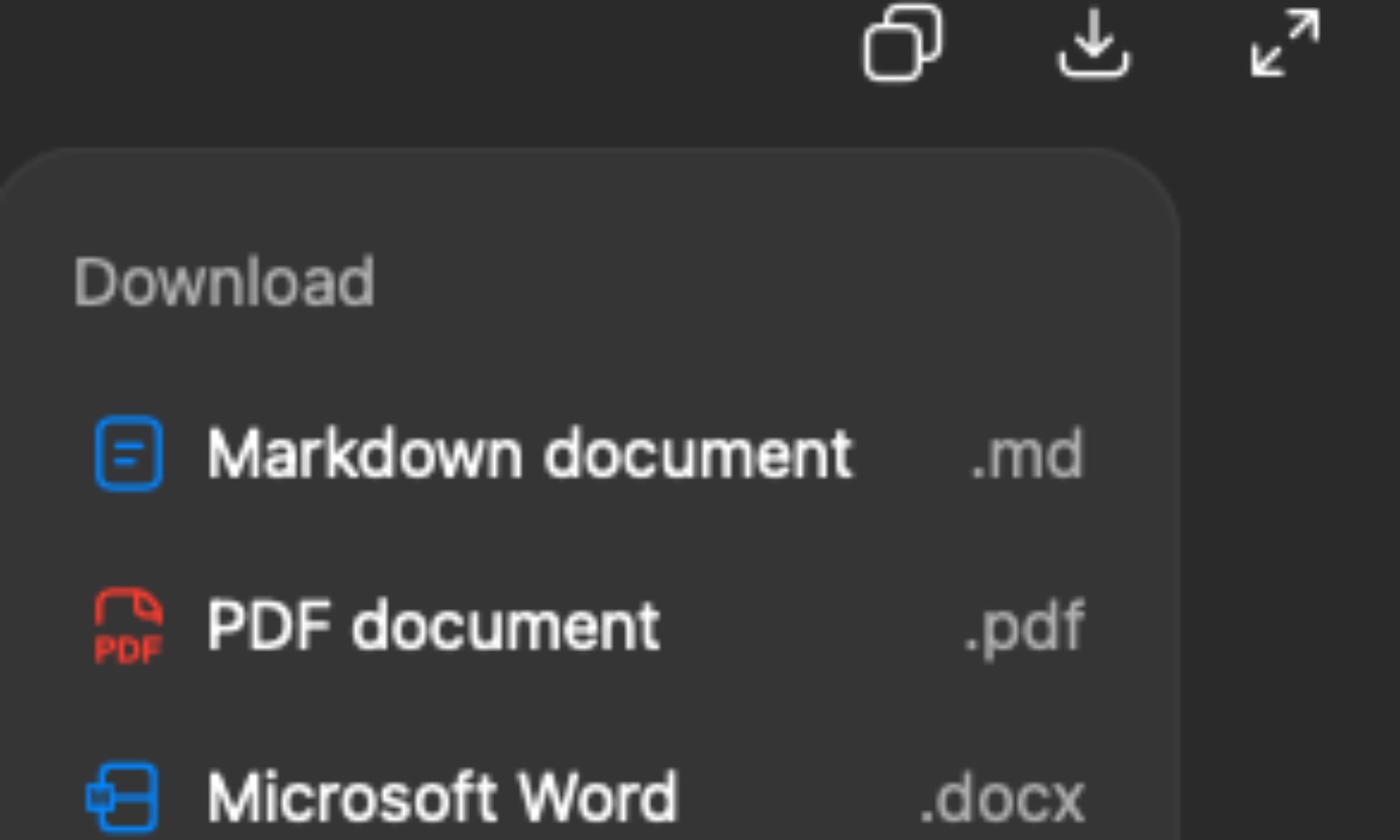
That’s a much nicer experience than what I was doing before. I’d finish something in ChatGPT, open Word or another app, copy everything over, fix the formatting that inevitably went wonky somewhere along the way, and then continue working. It wasn’t difficult, but doing it repeatedly got very boring and time-consuming. Now, I can keep ChatGPT as the place where I brainstorm and build something, then simply download the result when I’m ready to take it elsewhere.
Your turn to give them a try
If you use ChatGPT regularly, I’d definitely recommend giving these features a try. I’ve been having a genuinely good time discovering new ways to use ChatGPT, and clearly, I have no intention of stopping anytime soon. So, if I stumble across another feature that makes my day a little easier, you can bet I’ll be back to tell you about it. Until then, give these three a shot. Your ChatGPT routine might just get a little better.
I found 3 ChatGPT features that turned out to be way more useful than I expected
Source link