



The Lofree Flow 2 made me feel like a faster typist, but it also tested my patience
Digital Trends
Lofree Flow 2
MSRP $159.00

“The Lofree Flow 2 types beautifully, but its awkward extras lack the same polish.”
Pros
- Excellent typing experience
- Premium aluminum construction
- Smooth, refined Surfer switches
- Hot-swappable design
- Wired and wireless connectivity
Cons
- Touch strip activates accidentally
- Awkward side-mounted USB-C port
- No storage for the wireless receiver
- VIA setup is needlessly difficult
“Why you can trust Digital Trends – We have a 20-year history of testing, reviewing, and rating products, services and apps to help you make a sound buying decision. Find out more about how we test and score products.“
The Lofree Flow 2 made an excellent first impression. Its aluminum body feels reassuringly solid, its minimalist design looks expensive without screaming for attention, and once I started typing, my fingers felt strangely lithe.
That isn’t a word I normally associate with fingers, but it fits. Moving between keys required less effort without giving me the shallow, slightly dead sensation I usually get from laptop keyboards. I even felt like I was typing faster.
For once, the numbers supported the new-product placebo. I normally average between 90 and 95 words per minute on Monkeytype, but I regularly crossed 100 words per minute with the Flow 2. That hardly qualifies me for competitive typing, assuming such a terrifying sport exists, but the difference was consistent enough to notice.
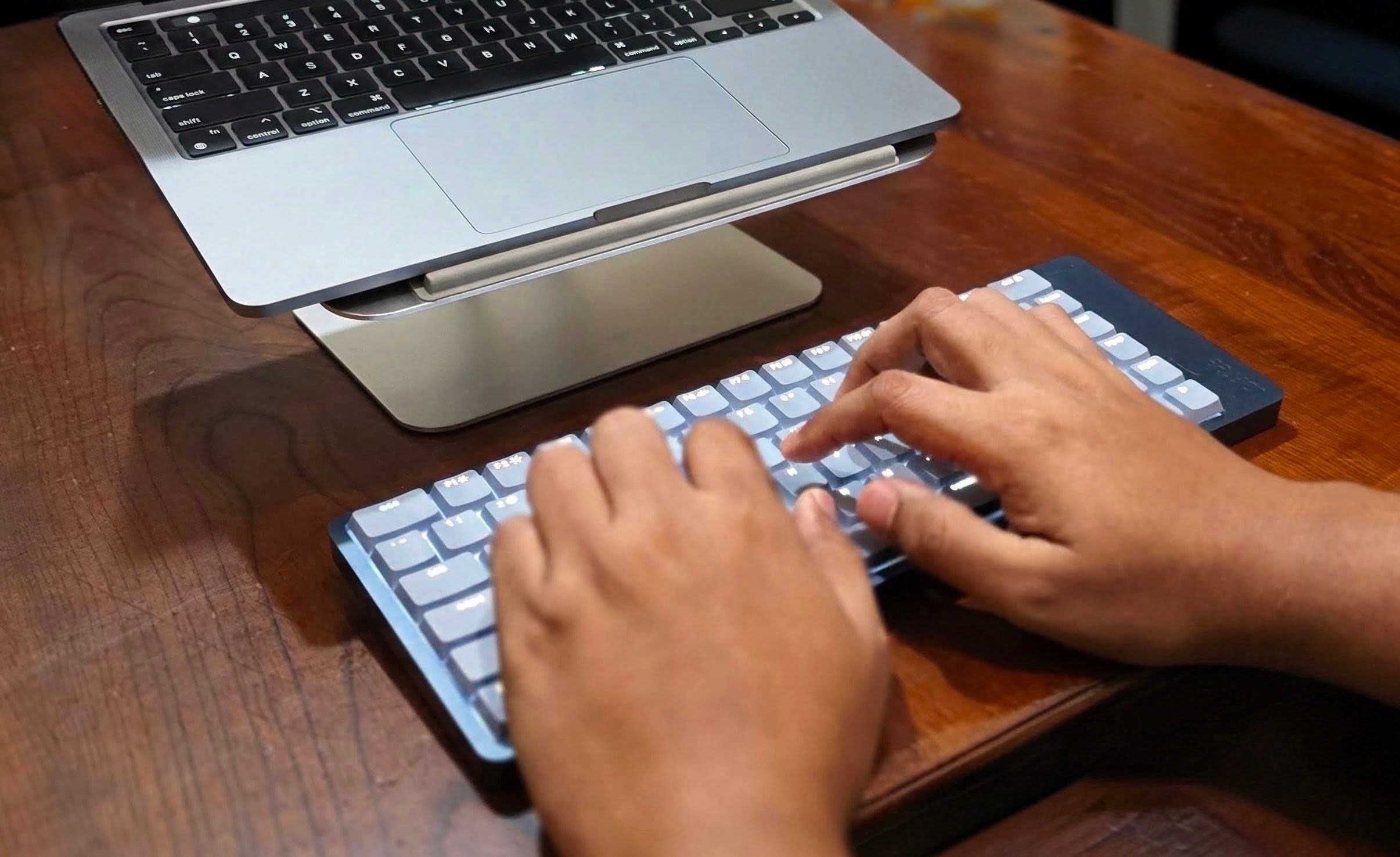
Living with the Flow 2 also revealed several decisions that aren’t nearly as polished as the keyboard itself. None made me want to stop using it, but they suggest Lofree spent more time perfecting what happens under your fingers than considering everything your hands might do around it.
Price and configuration
I tested the latest 84-key Mac version, which costs $159 and comes with Lofree’s Surfer linear switches. These belong to the newer Cloud Series developed for the Flow 2, replacing the Ghost and Phantom switches offered with the original Flow.
Lofree also sells the keyboard with quieter Void linear switches and tactile Pulse switches, so the exact typing experience will depend on the configuration.
At this price, the Flow 2 competes with premium low-profile keyboards from Keychron, NuPhy and Logitech. That makes its smaller frustrations harder to dismiss. A less expensive keyboard can get away with asking its owner to improvise. A premium one should have already thought through where the dongle goes.
| Specification | Lofree Flow 2 tested |
| Layout | 75%, 84 keys |
| Switches | Surfer linear |
| Other switch options | Void silent linear, Pulse tactile |
| Connectivity | USB-C, Bluetooth 5.3, 2.4GHz |
| Battery | 3,000mAh |
| Rated battery life | Up to 120 hours without backlighting |
| Backlighting | White |
| Switch replacement | Hot-swappable |
| Remapping | VIA |
| MSRP | $159 |
The Flow 2 offers an excellent typing experience
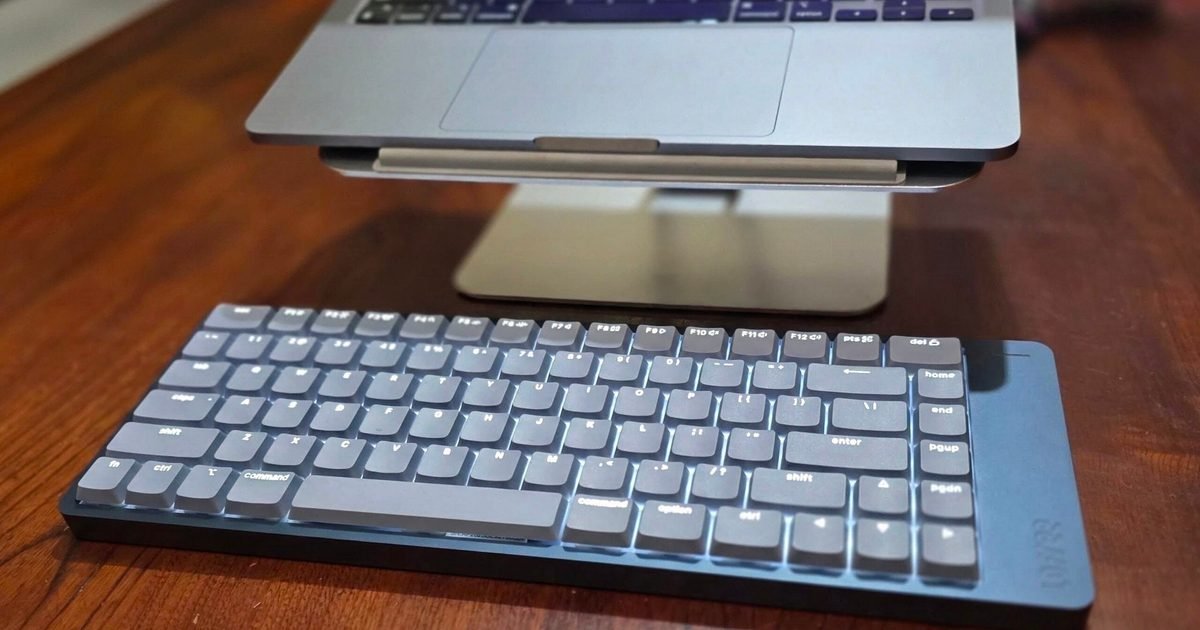
The Flow 2 sits somewhere between a traditional mechanical keyboard and a laptop keyboard without feeling like a compromised version of either.
Its keys have enough travel to make each press feel deliberate, while the low-profile design keeps movements short. Each press lands softly without becoming mushy, the Surfer switches are smooth and consistent, and the wider keycaps give my fingers a comfortable target.
My regular mechanical keyboard feels heavier by comparison. I encounter less resistance while moving through a sentence, which probably explains those higher Monkeytype results. That’s especially pleasant during long stretches of writing, when a heavier keyboard can gradually make every key feel like a tiny administrative task.
The aluminum construction completes the effect. The board doesn’t noticeably flex, and it stays planted on my desk. Its restrained design also avoids the usual gamer aesthetic. You get white backlighting, but no rainbow running beneath the keys like a tiny nightclub.
My space bar has a faint springiness if I listen for it, although it’s negligible during normal typing. I didn’t encounter the prominent metallic resonance reported in some other reviews. Whether that comes down to the Surfer switches, production differences or plain unit-to-unit variation is difficult to say.
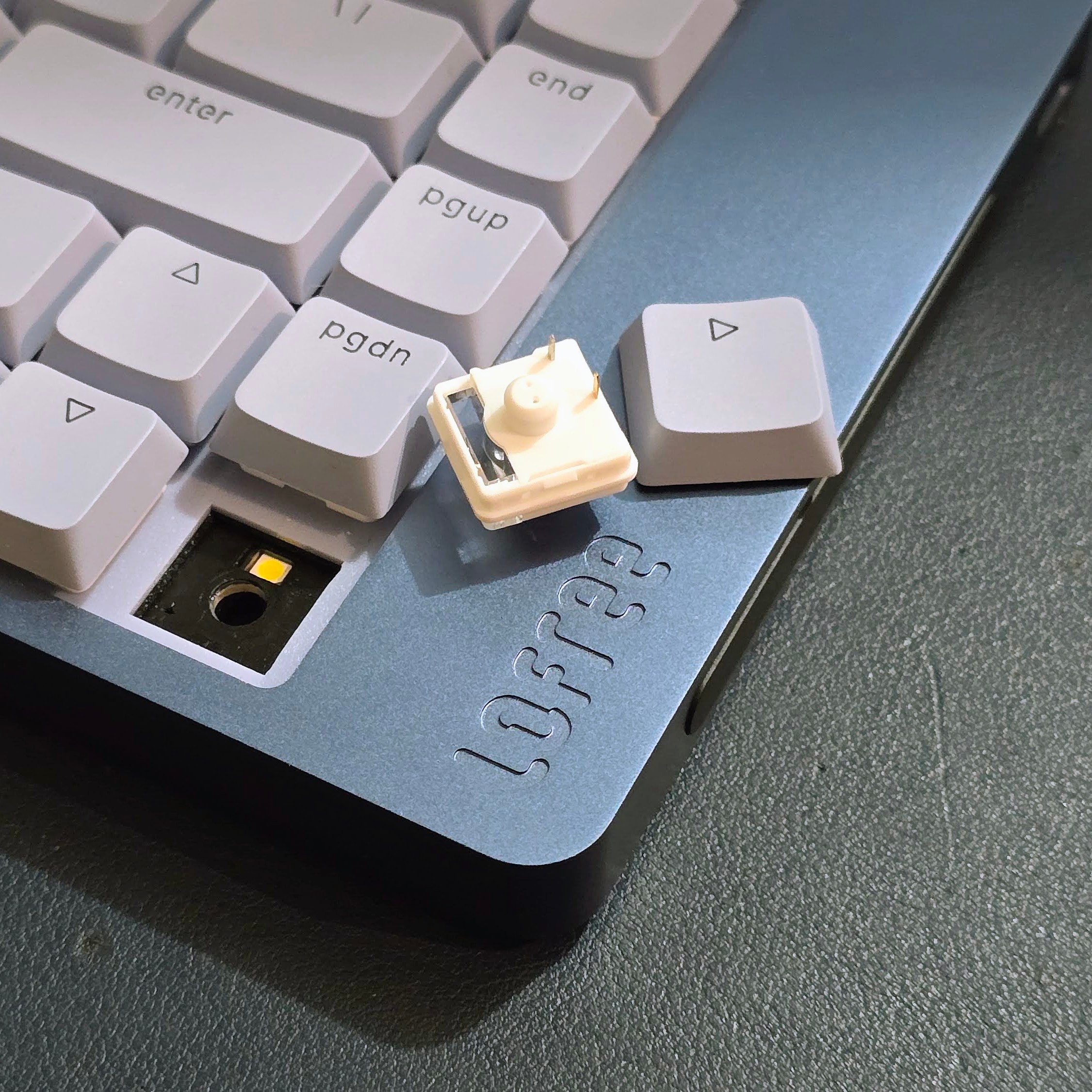
The Flow 2 is hot-swappable, so you can replace its switches without soldering. That gives enthusiasts some room to alter the typing experience and means one failed switch doesn’t condemn the entire keyboard.
I’d still approach that feature cautiously. The plastic clips on low-profile switches seem more delicate than their chunky full-height equivalents, and compatibility is narrower than it is in the standard MX-style market. Hot-swappable doesn’t mean every mechanical switch you find online will fit.
Fortunately, I haven’t wanted to replace the stock switches. People who normally open a new keyboard and immediately start adding foam and tape in pursuit of the perfect “thock” may be surprised by how refined this one already sounds and feels.
The touch strip creates some daily frustration
The touch-sensitive strip on the right side is the Flow 2’s most conspicuous experiment. It controls volume and can adjust screen brightness. When I remember it exists, sliding a finger across it feels more elegant than repeatedly tapping a function key.
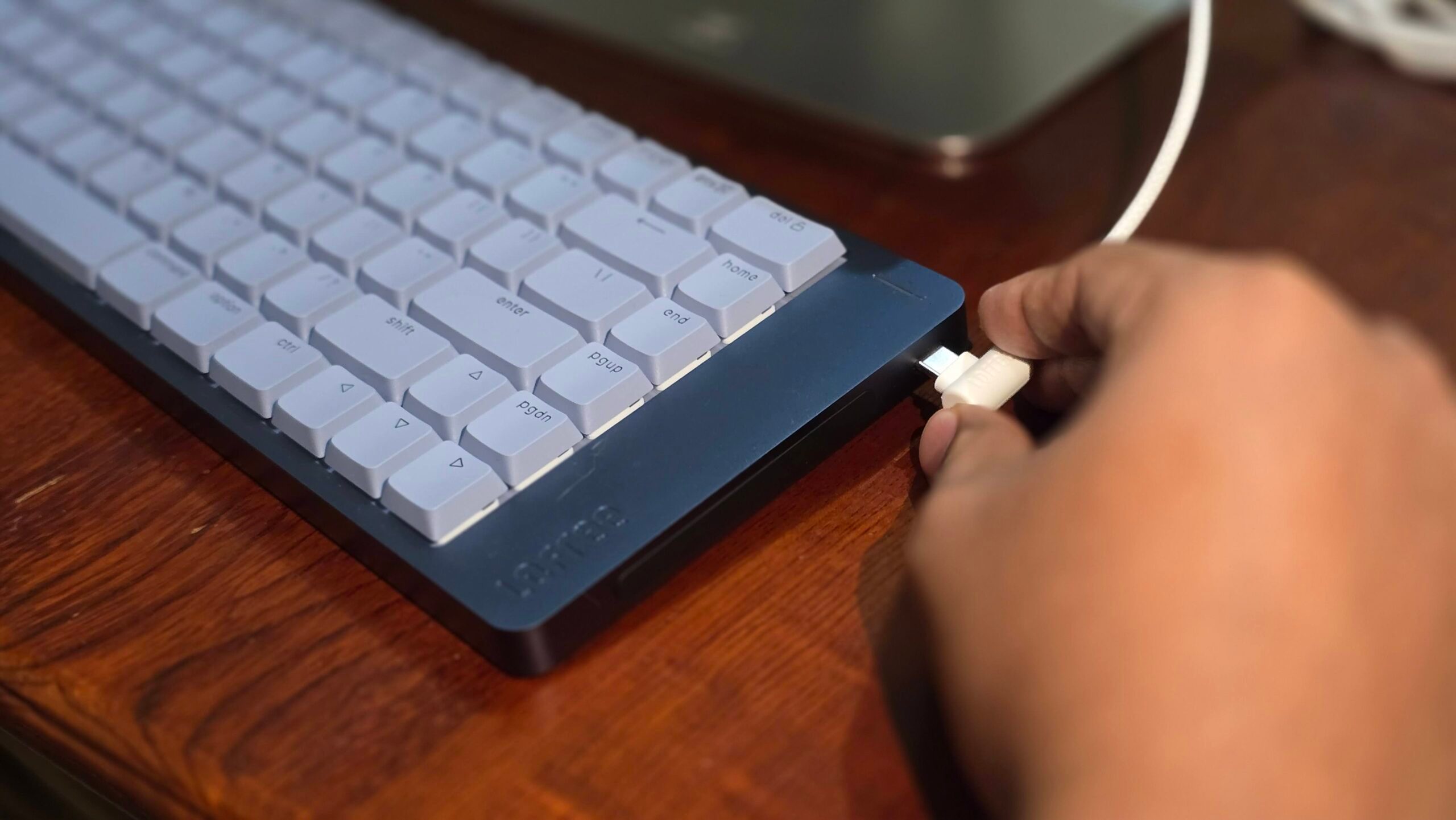
The trouble is remembering it at the right time while somehow forgetting it whenever I touch the keyboard’s edge.
Even after getting used to the Flow 2, I still trigger the strip by accident. My hand occasionally brushes against it, particularly when I’m repositioning the keyboard. Physical buttons or a dial would have been less novel, but they would also have been easier to use deliberately.
The USB-C port occupies that same side. Depending on how your desk is arranged, the cable can stretch toward the mouse area instead of disappearing neatly behind the keyboard. It works perfectly well, but its position seems better suited to the keyboard’s internal layout than anyone’s actual desk.
The 2.4GHz receiver, meanwhile, has nowhere to live. I keep mine in the box because I know exactly how this story ends otherwise. It’ll sit loose on my desk, migrate into a drawer and eventually disappear into the same dimension that collects missing socks and single wireless earbuds.
That omission feels especially strange on a compact wireless keyboard. The Flow 2 is small enough to carry between desks, yet its smallest and easiest component to lose has no home inside it.

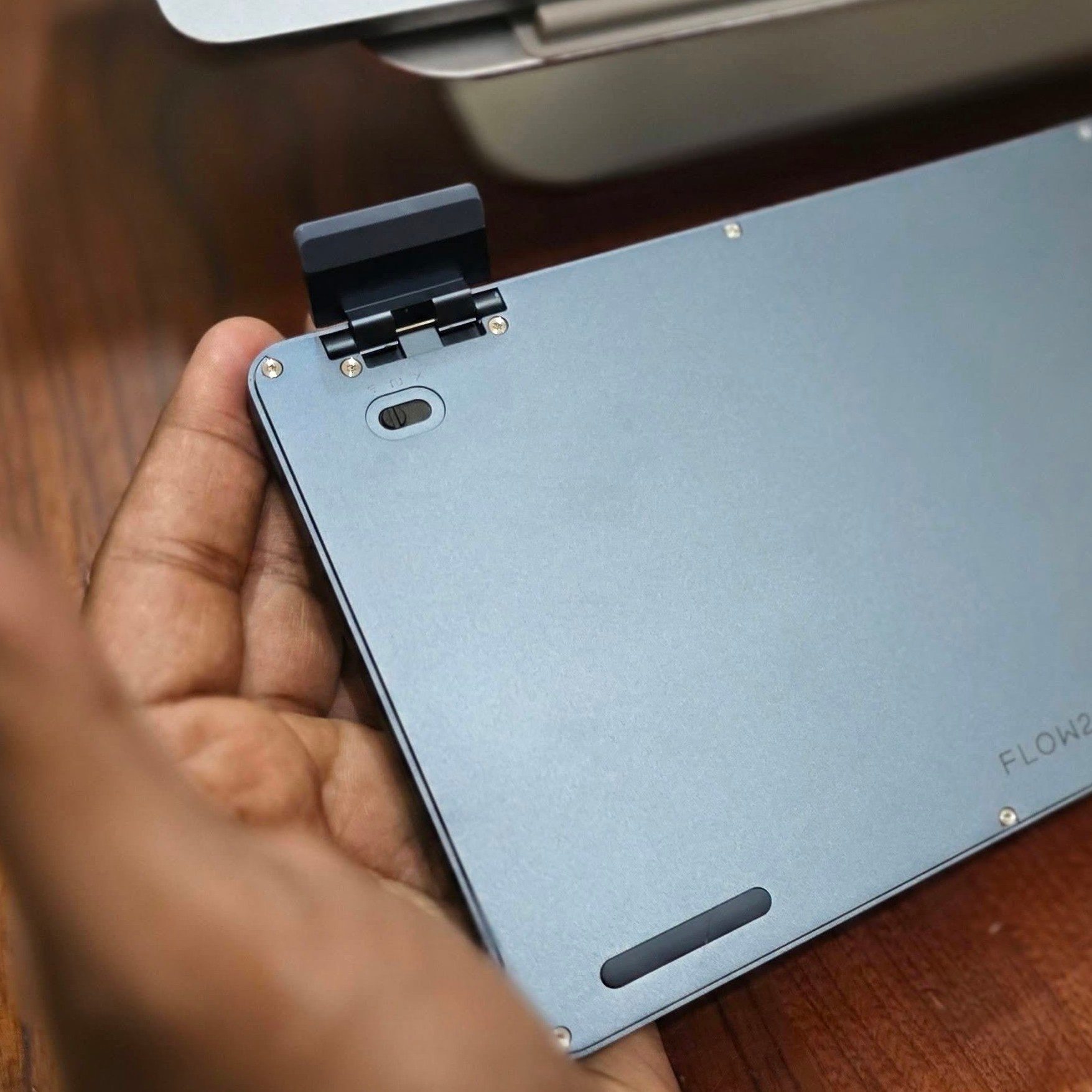
My most personal complaint involves the mode selector underneath the keyboard, which switches between wired, wireless and off. Hiding it there prevents accidental changes and would normally make sense, except I also have cats.
When one jumps onto my desk and decides the Flow 2 is a perfectly acceptable walking surface, I can’t quickly disable it without lifting the entire keyboard. A side-mounted control would make those little hostile takeovers easier to manage. This may be a specific complaint, but pet owners understand that every exposed surface eventually becomes a collaborative feature.
The 84-key model has a 3,000mAh battery rated for up to 120 hours with the backlight switched off. That’s competitive for this category, although maximum-brightness backlighting cuts the advertised figure substantially. Since the Flow 2 spent most of its time on my desk, battery life never became the central issue that its other design choices did.
VIA customization is harder than it should be
The Flow 2 supports VIA, which lets you remap keys and configure different layers through a browser interface. It should be one of the keyboard’s most useful features, especially for anyone who regularly moves between operating systems.
Actually getting it working was far harder than necessary.
During my testing, I couldn’t find the correct JSON configuration file on Lofree’s main website, download center or support pages. VIA wouldn’t properly recognize the keyboard without it, so I spent the better part of a day searching before contacting Lofree. The company eventually sent me the file directly.
Lofree now provides some Flow 2 configurator resources through individual regional and product pages, but they remain surprisingly difficult to locate through its central download page. A keyboard advertised as supporting VIA shouldn’t require buyers to know which obscure corner of the manufacturer’s website contains the missing ingredient.
VIA works well enough once configured, although the Fn key still can’t be customized. I wanted to reconfigure it while using the Flow 2 with Windows, but that limitation made switching layouts less flexible than expected.
I eventually kept the keyboard connected mostly to my Mac, where the native layout made sense and I could concentrate on writing instead of managing the thing I was writing with.
Should you buy the Lofree Flow 2?
The Flow 2 is worth buying if typing quality, construction and appearance matter more to you than seamless customization. It feels refined immediately, so enthusiasts may be surprised by how little they want to modify. More casual buyers can get an excellent mechanical typing experience without surrendering a weekend to foam, tape and switch research.
It’s less convincing if you frequently switch operating systems, expect VIA to work without a scavenger hunt or regularly carry the receiver between desks. Mac users who intend to leave it in one place will encounter fewer of its rough edges.
Anyone indifferent to the precise woodland noise made by a space bar may simply see an attractive aluminum keyboard that pairs nicely with the MacBook Neo colors.
I still occasionally trigger the touch strip, and the receiver remains in protective custody inside the box. Yet I keep returning to the Flow 2. I thought it merely made me feel faster, but Monkeytype says otherwise. Apparently, the keyboard tested my patience and improved my typing speed at the same time.
The Lofree Flow 2 made me feel like a faster typist, but it also tested my patience
Source link